📝 Overview of Ways to Add
- Copy the article link and open Clipora to auto-detect and add
- Use the system Share sheet in an app to send to Clipora
- Enter a URL in Clipora’s built-in browser and generate content
- If the Clipora browser extension is installed, save pages with one click
- Add items directly from “Recommended Content” in the app
⚠️ Important Notice
Important Notice
- Some websites have anti-scraping or login restrictions, so we cannot guarantee that all pages can be parsed successfully.
- If the target page cannot be parsed, consider saving it using a browser extension.
- If parsing fails, try deleting and re-adding it.
1) Auto-detect from a copied link
- Copy the article’s URL
- Open
Clipora - The app detects the clipboard link and prompts to add; tap “Add”
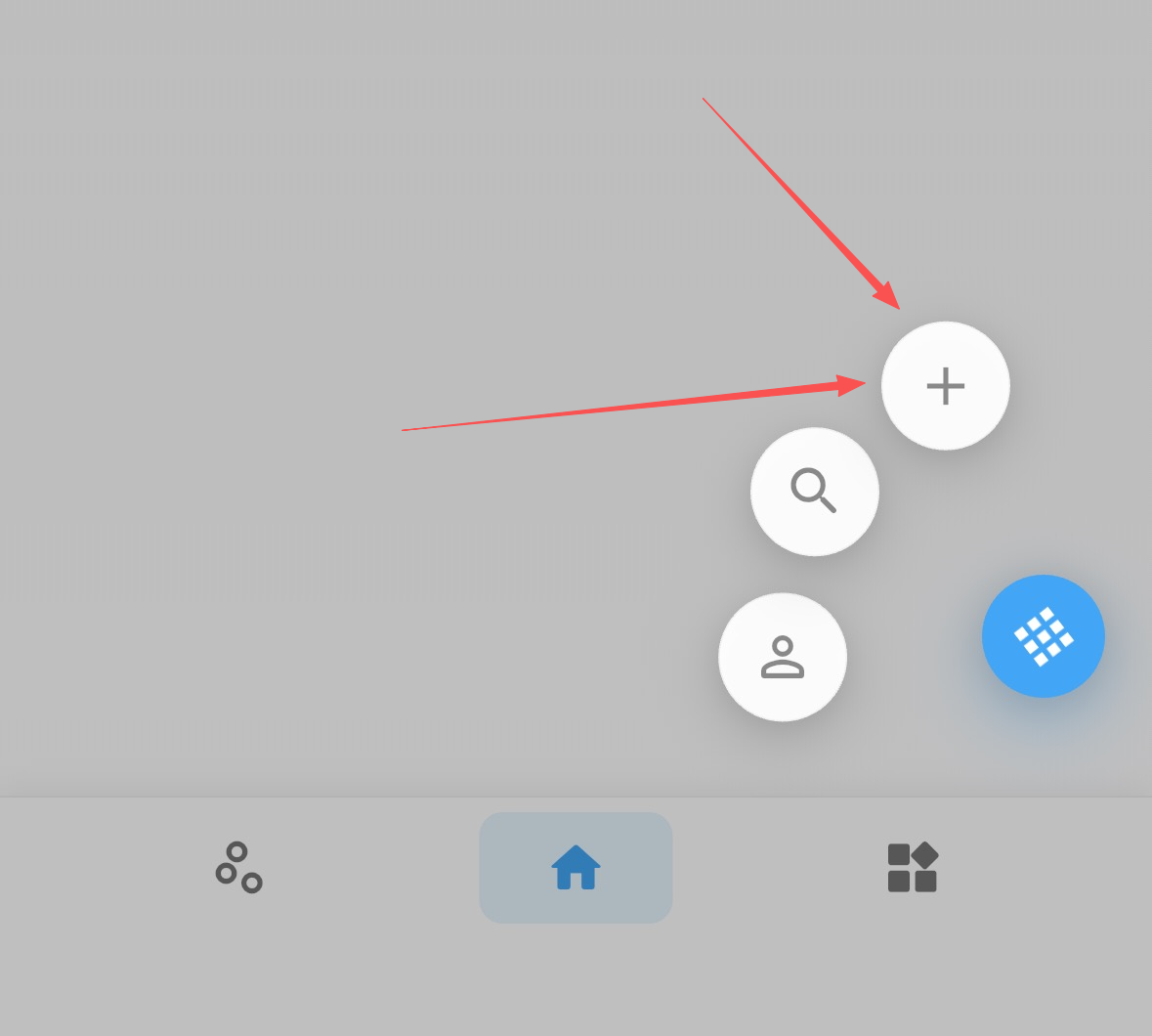
- If no prompt appears, tap the “Add” button on the Home screen (bottom-right), paste the full text; Clipora will automatically detect and save any links within
2) Add via system Share (iOS / Android)
- Open the target article in Safari, Chrome, or any app that supports sharing
- Tap “Share” and choose
Cliporaas the target - Clipora receives the link, saves it to your library, and shows a “Saved successfully” notice
- On first use of Share on iOS, tap “More” at the far right of the share sheet to enable
Clipora
3) Generate content with the built-in browser
- From
Home → More (bottom-right) → Add, enter the “Built-in Browser” - Type or paste the target URL into the address bar and tap “Go” to load the page
- Once loaded, tap “Generate”, confirm, and the page will be saved as content
- For sites requiring login, sign in within the built-in browser first, then generate content
4) One-click save with the browser extension
- If you have the Clipora browser extension installed, click the extension icon on the target page to save
- Ideal for quickly collecting articles, news, and media pieces on desktop
5) Add from “Recommended Content”
- Open
Clipora→ “Recommended Content” - Tap “Add to Favorites” on any item you’re interested in
📰 Supported Content Types
- Common web pages such as blog posts, news reports, media columns, and long-form articles
❓ FAQ
FAQ
- Parsing in progress or parsing failed: the original web content is shown temporarily; once parsing completes, it switches to a reader-friendly view
- Duplicate links: the same URL won’t be added twice; open the already-saved content directly from the list
- Sites that require login: please log in via Clipora’s built-in browser first, then generate content
- Page generation failed: check your network and retry, or use “Copy link and auto-detect” / “System Share” to add
✅ Tips
Tips
- After adding, you can edit the title and description on the details page to improve later search and organization
- Use tags and categories to organize your collection and boost retrieval efficiency
- In the reading view, you can highlight, take notes, and translate to support deep learning